Skip to content
cloud pbx
  • Cloud PBX
  • Products & Services
    • Cloud PBX
      • Cloud PBX Enterprise
      • Cloud PBX Multi tenant
      • Cloud PBX office
      • Cloud PBX Lite
      • Hotel IP PBX Integrated Hotel PBX Solution
      • Cloud Call Center
        • Cloud call center
        • Call center customer service
        • Call Center Telemarketing
        • Call center AI 
      • SIP Trunk Provider Jakarta–Indonesia
    • Services
      • Data & Integration
        • 3CX, Grafana, and SQL Dashboard Monitoring Optimization
        • Wallboard Custom – Dimension
        • Creomate — Advanced External API Solution for 3CX Integration
        • Universal CRM Integration with 3CX
      • Contact Center Solutions
        • Omni channel Social Media
        • Telemarketing System
        • Solusi Business Process Outsourcing
      • Communication Channel Solutions
        • Microsoft Teams Direct Routing
        • WhatsApp Business Calling API Integration with PBX
        • Video conference: webmeeting 3CX
        • Webrtc softphone
        • Softphone
    • AI Agent & API Integration: 24/7 Automated Customer Service Solution
  • Devices
    • Voice Gateway
      • FXO
        • Dinstar FXO Gateway
        • Yeastar NeoGate TA410 VoIP Gateway
      • FXS
        • Analog Telephony Integration Solution: Dinstar
      • E1
        • E1/T1 Digital VoIP Gateway Newrock OM1000-TE (1–4 E1)
        • Beronet E1 Voip Gateway
    • IP Phone
      • Best IP Phones of 2026
      • SNOM D140, D150
      • Yealink IP Phone series
      • Poly Desk Phone
    • SBC
      • 3CX Micro SBC
      • Linkvil A710 SBC
      • Ribbon SBC
      • Sangoma SBC
  • Case Studies
  • News
  • Video
    • Tutorials
    • Video Integration
    • Testimoni
  • Help Center
  • Contact
  • Partnership Program
  • About Us
cloud pbx
  • Cloud PBX
  • Products & Services
    • Cloud PBX
      • Cloud PBX Enterprise
      • Cloud PBX Multi tenant
      • Cloud PBX office
      • Cloud PBX Lite
      • Hotel IP PBX Integrated Hotel PBX Solution
      • Cloud Call Center
        • Cloud call center
        • Call center customer service
        • Call Center Telemarketing
        • Call center AI 
      • SIP Trunk Provider Jakarta–Indonesia
    • Services
      • Data & Integration
        • 3CX, Grafana, and SQL Dashboard Monitoring Optimization
        • Wallboard Custom – Dimension
        • Creomate — Advanced External API Solution for 3CX Integration
        • Universal CRM Integration with 3CX
      • Contact Center Solutions
        • Omni channel Social Media
        • Telemarketing System
        • Solusi Business Process Outsourcing
      • Communication Channel Solutions
        • Microsoft Teams Direct Routing
        • WhatsApp Business Calling API Integration with PBX
        • Video conference: webmeeting 3CX
        • Webrtc softphone
        • Softphone
    • AI Agent & API Integration: 24/7 Automated Customer Service Solution
  • Devices
    • Voice Gateway
      • FXO
        • Dinstar FXO Gateway
        • Yeastar NeoGate TA410 VoIP Gateway
      • FXS
        • Analog Telephony Integration Solution: Dinstar
      • E1
        • E1/T1 Digital VoIP Gateway Newrock OM1000-TE (1–4 E1)
        • Beronet E1 Voip Gateway
    • IP Phone
      • Best IP Phones of 2026
      • SNOM D140, D150
      • Yealink IP Phone series
      • Poly Desk Phone
    • SBC
      • 3CX Micro SBC
      • Linkvil A710 SBC
      • Ribbon SBC
      • Sangoma SBC
  • Case Studies
  • News
  • Video
    • Tutorials
    • Video Integration
    • Testimoni
  • Help Center
  • Contact
  • Partnership Program
  • About Us
  • English
  • Bahasa Indonesia
  • English
  • Bahasa Indonesia
cloud pbx

IP Phone

8
  • What Is an IP Phone?
  • How to Install/Provision an IP Phone
  • IP Phones Compatible with 3CX
  • Factory Reset an IP Phone: A Required Step Before Provisioning to Avoid Errors

3CX Softphone: Webclient and Apps

12
  • How to Access the 3CX Web Client
  • How to Install and Activate the 3CX Desktop App on Windows (PWA & Windows App)
  • Learn 3CX’s Basic Communication Features in 5 Minutes
  • The Easy Way to Set Available, Away, and DND Status in 3CX
  • Activating the 3CX Mobile App with a QR Code
  • Digital Receptionist (IVR): How to Build a Professional Automated Phone Menu

3CX Admin Console & Manajemen Sistem

22
  • What Is an SBC? Meet the “Security Guard” Protecting Your VoIP System
  • What Is FXO? How FXO Connects Analog Lines to IP PBX
  • Backup and Restore Feature
  • How to Set Up Call Forwarding Based on Presence Status in 3CX
  • How to Use Call Parking and Retrieve Call in 3CX
  • How to Change Your AUX Status (Available, Away, DND) in 3CX
  • Tutorial: Setting Up Call Transcription on Cloud PBX (3CX)
  • Managing Departments & Users in 3CX: Adding Users, Setting Roles, and Managing Departments Easily
  • How to Set Up a Router Phone / 3CX SBC for Remote & WFH Employees
  • Ring Groups vs Call Queues in 3CX: Keep Customers From Waiting and Your Team From Getting Overwhelmed
  • Office Hours & Holiday Rules: Keep Business Calls Handled Even When the Office Is Closed

Keamanan VoIP dan Troubleshoot

6
  • Fixing One-Way Audio in 3CX — Call Connects But Only One Side Can Hear?
  • How to Unblock an IP After Too Many Failed Login Attempts
  • 3CX Firewall Checker: How to Check 3CX Ports So Calls Stay Smooth

Developer

14
  • Transforming Enterprise Phone Architecture with a WebRTC SBC Gateway
  • WebRTC SBC Gateway Integration for Flutter
  • Optimizing Enterprise Collaboration with the 3CX Video Conference API
  • 3CX CRM XML Template Structure & Specification Guide
  • 3CX REST API (XAPI) Endpoint Guide for Configuration
  • Guide to Integrating Odoo CRM with 3CX
  • Flutter WebRTC Softphone App Using the sip_ua Package

SIP TRUNK

8
  • What Is a SIP Trunk?
  • How Many Types of SIP Trunk Numbers or Services Are There?
  • How to Enable Incoming WhatsApp Calls (WhatsApp SIP Calling) in 3CX
  • SIP Trunk Management: How to Connect a Local Provider Phone Number to 3CX

WhatsApp Calling API

12
  • What Is the WhatsApp Calling API?
  • Guide & Optimization: Setting Up WhatsApp Call for Customer Service in 3CX
  • How to Route WhatsApp Calls to Multiple Extensions at Once
  • Guide to Building a WhatsApp Call Queue in 3CX for Customer Service
  • How to Enable Incoming WhatsApp Calls (WhatsApp SIP Calling) in 3CX
  • Integrating WhatsApp Call with CRM Using 3CX
View Categories
  • Home
  • Pusat Bantuan
  • Developer
  • Guide to Integrating Odoo CRM with 3CX

Guide to Integrating Odoo CRM with 3CX

Adelin
Updated on October 2, 2026

3 min read

Good news for Odoo CRM and 3CX users! The update in 3CX V.20 Update 10 lets 3CX integrate natively with Odoo CRM. 3CX now provides a direct integration with Odoo CRM through the 3CX CRM API.
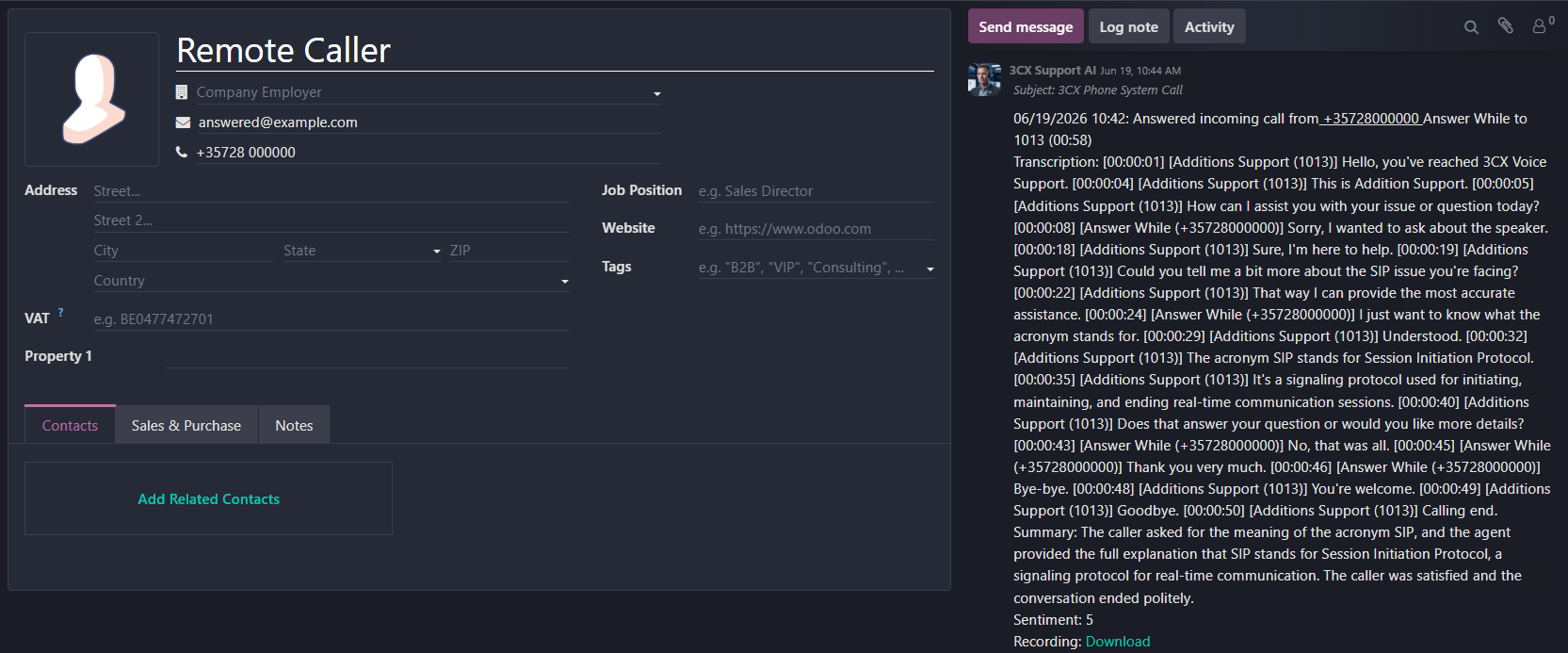
This integration brings several key features that make life easier for both sales and IT support teams:

  • Caller ID to Contact Name — every incoming call automatically triggers a contact lookup in Odoo, so the caller’s name appears directly instead of just their number.
  • Contact Search in Odoo — searching for a name in the 3CX Web Client can be done by Name, Number, or Email, and supports both individual and company contacts.
  • Call & Chat Journaling — call and conversation history is automatically saved to the Odoo Contact Card as a CRM record.
  • New Contact Creation — if a call comes in from an unrecognized number, the user can create a new contact directly from the 3CX client.
  • Click to Call — calls can be placed directly from within Odoo using the 3CX Click2Call browser extension, available for Google Chrome and Microsoft Edge.

Here are the complete steps to set up this integration.

Step 1: Configuration in Odoo #
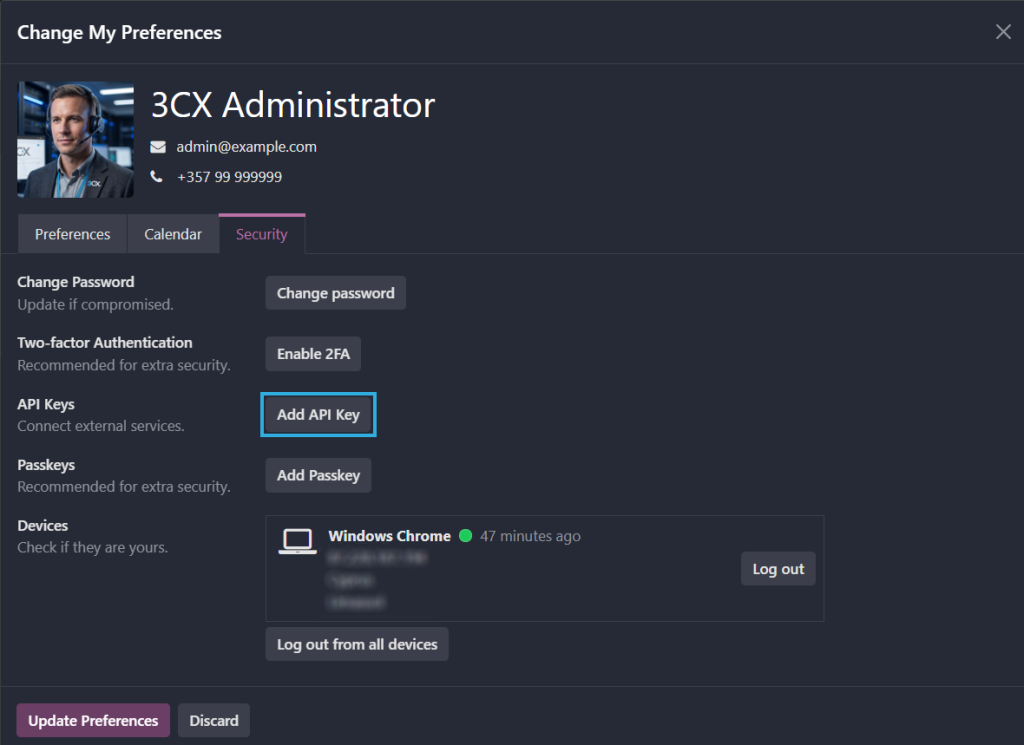
Before configuring 3CX, you first need to prepare an API Key on the Odoo side.

  1. Log in to your Odoo CRM account.
  2. Click your profile picture, then select My Preferences.
  3. Open the Security tab.
  4. Click the Add API Key button.
  5. Give the new API Key a name and set its expiration.
  6. Click Generate key.
  7. Copy and store the API Key somewhere safe — it will only be shown once.
  8. Click Done.

Also make a note of your Odoo instance’s Database name (usually the same as the hostname of your Odoo FQDN). If you’re not sure of the database name, here’s how to find it:

  1. Click your profile picture, then select My Databases.
  2. Log in again if prompted.
  3. Note down your instance’s database name.

Step 2: Configuration in 3CX #
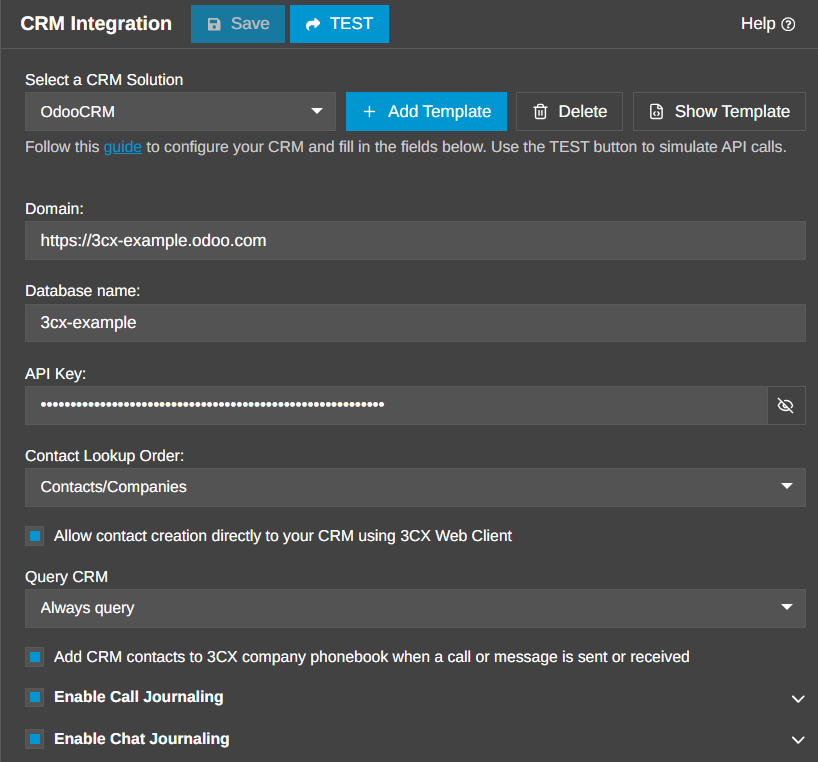
Once your API Key and database name are ready, continue the setup on the 3CX side:

  1. Go to Admin > Integrations > CRM.
  2. Select OdooCRM from the dropdown list.
  3. Enter the following information:
    • Odoo Domain URL (example: https://3cx-example.odoo.com)
    • Odoo Database name
    • Odoo API Key
  4. Click Save.

Step 3: Configuring Call & Chat Journaling #
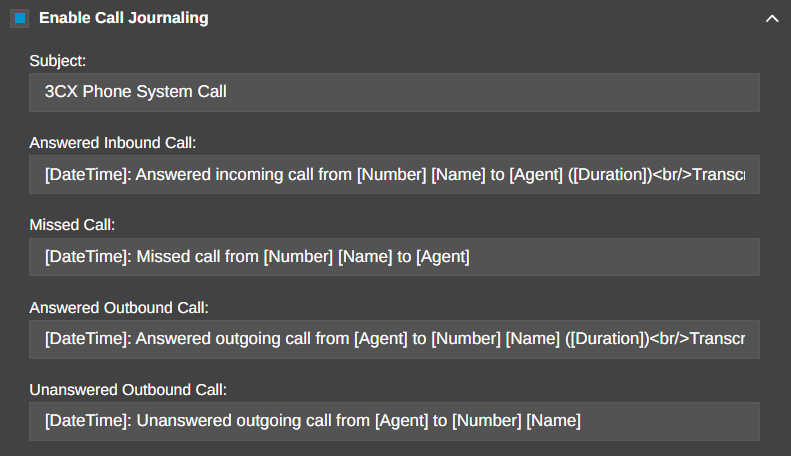
For external calls to be logged correctly, the caller’s phone number needs to match a number stored in an Odoo contact. This lets 3CX map an incoming call to the correct contact in Odoo.

For call logging (Call Journaling):

Enable the Enable Call Journaling option, then configure the following parameters:

ParameterDescription
Call SubjectThe call’s subject line
Answered Inbound CallDescription for an answered inbound call
Missed CallDescription for an unanswered call
Answered Outbound CallDescription for an answered outbound call
Unanswered Outbound CallDescription for an unanswered outbound call

You can use variables in these parameters, written in the format [variable_name] — for example, the external number is written as [Number].

For chat logging (Chat Journaling):

If you’d also like chats to be logged to the CRM, enable Enable Chat Journaling. You can also customize the Chat Subject, including using variables like [Number].

Keep in mind that for an external chat to be logged into Odoo, the other party’s email address (for Web Chat) or phone number (for SMS/WhatsApp) needs to match the data already stored in an Odoo contact.

Step 4: Configuring Contact Matching #
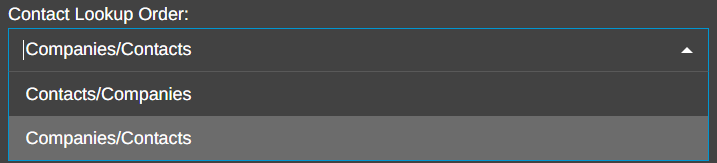
On the Odoo settings page in 3CX, you can decide whether contact matching should be attempted first against a regular Contact record or a Company record in Odoo.

There are also two phone number matching methods for calls, configurable under Admin > System > Phonebook > Options:
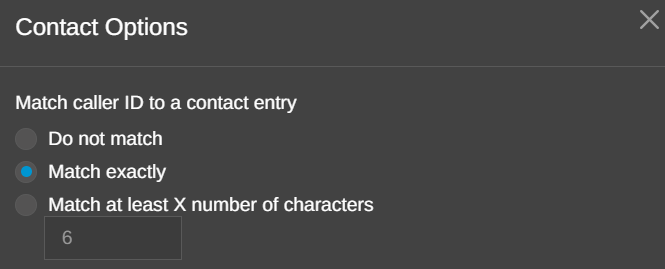
  • Match Exactly — use this option if all of your contacts already use the full E164 format, both when stored and when making/receiving calls. This method guarantees 100% match accuracy.
  • Match at least X number of characters — use this option if your calls use a mix of formats, such as local dialing, E164, or other international formats. The ideal number of characters depends on the local numbering scheme used in your region.
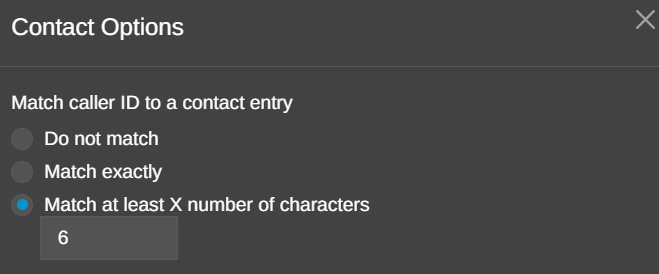
Step 5: Configuring New Contact Creation #
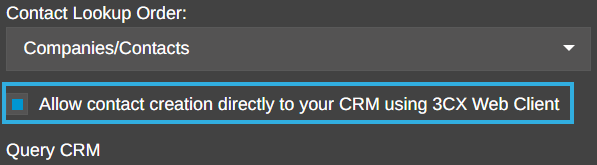
If you want the system to automatically create a new CRM contact when a call comes in from an unrecognized number (not found in either 3CX or the CRM), enable the Allow contact creation directly to your CRM using 3CX Web Client option.

With this option enabled, whenever a caller’s number can’t be matched to any contact, the 3CX Web Client will display a dialog that lets the user fill in the new contact’s details right there.

Closing Notes #

By following the five steps above, your 3CX phone system and Odoo CRM will be connected automatically — from recognizing caller names, to logging communication history, to instantly creating new contacts. This integration is a huge help for teams that rely on centralized customer data without needing to switch between apps while handling calls or chats.

For other CRM integration needs, 3CX also provides similar guides for ConnectWise, HubSpot, Jetpack CRM, Vtiger, Microsoft 365, as well as database integrations for Microsoft SQL Server, MySQL, and PostgreSQL.

3CX REST API (XAPI) Endpoint Guide for ConfigurationFlutter WebRTC Softphone App Using the sip_ua Package
Table of Contents
  • Step 1: Configuration in Odoo
  • Step 2: Configuration in 3CX
  • Step 3: Configuring Call & Chat Journaling
  • Step 4: Configuring Contact Matching
  • Step 5: Configuring New Contact Creation
  • Closing Notes

Share This Article :

  • Facebook
  • X
  • LinkedIn

Was it helpful ?

  • Happy
  • Normal
  • Sad
  • Cloud PBX
  • Products & Services
  • Devices
  • Case Studies
  • News
  • Video
  • Help Center
  • Contact
  • Partnership Program
  • About Us
  • Cloud PBX Enterprise
  • Cloud PBX Multi tenant
  • Cloud call center
  • Cloud PBX office
  • Click to Talk
  • Webrtc softphone
  • AI Agent & API Integration: 24/7 Automated Customer Service Solution
  • WhatsApp Business Calling API Integration with PBX
  • Integrasi CRM dengan 3CX
  • Help Center
  • Comply with PCI DSS & HIPAA Standards
  • Practical Ways to Improve Hotel Communication Efficiency
  • Agentic AI: A New Era for Smart Phone Systems
  • Cloud PBX Office for Business Communication
  • Understanding the Call Flow Designer Feature
  • Call Center Hospitality
  • WhatsApp Customer Service with 3CX
  • PBX Monitoring with Grafana and SQL Dashboard
  • Ribbon SBC for Microsoft Teams Direct Routing: SBC 1000 Appliance vs Cloud-Based SWe Lite
  • Sangoma SBC: A Secure Bridge from Telkom SIP Trunk to AI Voice Platforms
  • Privacy Policy

PT. Solusi Teknologi Unggul | My Republik Plaza Wing A Ground Level Zona 6, Green Office Park 6. BSD City Tangerang Banten 15345 Tel:+62-21-50111266

Copyright © 2026 PT. Solusi Teknologi Unggul 

Need help? Chat with us on WhatsApp
WhatsApp
Hello, welcome to Solusipbx.com, thank you for contacting us

To help us provide the right solution, please tell us your Name, Company
and your needs
Open Chat
Powered by Joinchat