

Skip to content
cloud pbx
  • Cloud PBX
  • Products & Services
    • Cloud PBX
      • Cloud PBX Enterprise
      • Cloud PBX Multi tenant
      • Cloud PBX office
      • Cloud PBX Lite
      • Hotel IP PBX Integrated Hotel PBX Solution
      • Cloud Call Center
        • Cloud call center
        • Call center customer service
        • Call Center Telemarketing
        • Call center AI 
      • SIP Trunk Provider Jakarta–Indonesia
    • Services
      • Data & Integration
        • 3CX, Grafana, and SQL Dashboard Monitoring Optimization
        • Wallboard Custom – Dimension
        • Creomate — Advanced External API Solution for 3CX Integration
        • Universal CRM Integration with 3CX
      • Contact Center Solutions
        • Omni channel Social Media
        • Telemarketing System
        • Solusi Business Process Outsourcing
      • Communication Channel Solutions
        • Microsoft Teams Direct Routing
        • WhatsApp Business Calling API Integration with PBX
        • Video conference: webmeeting 3CX
        • Webrtc softphone
        • Softphone
    • AI Agent & API Integration: 24/7 Automated Customer Service Solution
  • Devices
    • Voice Gateway
      • FXO
        • Dinstar FXO Gateway
        • Yeastar NeoGate TA410 VoIP Gateway
      • FXS
        • Analog Telephony Integration Solution: Dinstar
      • E1
        • E1/T1 Digital VoIP Gateway Newrock OM1000-TE (1–4 E1)
        • Beronet E1 Voip Gateway
    • IP Phone
      • Best IP Phones of 2026
      • SNOM D140, D150
      • Yealink IP Phone series
      • Poly Desk Phone
    • SBC
      • 3CX Micro SBC
      • Linkvil A710 SBC
      • Ribbon SBC
      • Sangoma SBC
  • Case Studies
  • News
  • Video
    • Tutorials
    • Video Integration
    • Testimoni
  • Help Center
  • Contact
  • Partnership Program
  • About Us
cloud pbx
  • Cloud PBX
  • Products & Services
    • Cloud PBX
      • Cloud PBX Enterprise
      • Cloud PBX Multi tenant
      • Cloud PBX office
      • Cloud PBX Lite
      • Hotel IP PBX Integrated Hotel PBX Solution
      • Cloud Call Center
        • Cloud call center
        • Call center customer service
        • Call Center Telemarketing
        • Call center AI 
      • SIP Trunk Provider Jakarta–Indonesia
    • Services
      • Data & Integration
        • 3CX, Grafana, and SQL Dashboard Monitoring Optimization
        • Wallboard Custom – Dimension
        • Creomate — Advanced External API Solution for 3CX Integration
        • Universal CRM Integration with 3CX
      • Contact Center Solutions
        • Omni channel Social Media
        • Telemarketing System
        • Solusi Business Process Outsourcing
      • Communication Channel Solutions
        • Microsoft Teams Direct Routing
        • WhatsApp Business Calling API Integration with PBX
        • Video conference: webmeeting 3CX
        • Webrtc softphone
        • Softphone
    • AI Agent & API Integration: 24/7 Automated Customer Service Solution
  • Devices
    • Voice Gateway
      • FXO
        • Dinstar FXO Gateway
        • Yeastar NeoGate TA410 VoIP Gateway
      • FXS
        • Analog Telephony Integration Solution: Dinstar
      • E1
        • E1/T1 Digital VoIP Gateway Newrock OM1000-TE (1–4 E1)
        • Beronet E1 Voip Gateway
    • IP Phone
      • Best IP Phones of 2026
      • SNOM D140, D150
      • Yealink IP Phone series
      • Poly Desk Phone
    • SBC
      • 3CX Micro SBC
      • Linkvil A710 SBC
      • Ribbon SBC
      • Sangoma SBC
  • Case Studies
  • News
  • Video
    • Tutorials
    • Video Integration
    • Testimoni
  • Help Center
  • Contact
  • Partnership Program
  • About Us
  • English
  • Bahasa Indonesia
  • English
  • Bahasa Indonesia
cloud pbx

IP Phone

8
  • What Is an IP Phone?
  • How to Install/Provision an IP Phone
  • IP Phones Compatible with 3CX
  • Factory Reset an IP Phone: A Required Step Before Provisioning to Avoid Errors

3CX Softphone: Webclient and Apps

12
  • How to Access the 3CX Web Client
  • How to Install and Activate the 3CX Desktop App on Windows (PWA & Windows App)
  • Learn 3CX’s Basic Communication Features in 5 Minutes
  • The Easy Way to Set Available, Away, and DND Status in 3CX
  • Activating the 3CX Mobile App with a QR Code
  • Digital Receptionist (IVR): How to Build a Professional Automated Phone Menu

3CX Admin Console & Manajemen Sistem

22
  • What Is an SBC? Meet the “Security Guard” Protecting Your VoIP System
  • What Is FXO? How FXO Connects Analog Lines to IP PBX
  • Backup and Restore Feature
  • How to Set Up Call Forwarding Based on Presence Status in 3CX
  • How to Use Call Parking and Retrieve Call in 3CX
  • How to Change Your AUX Status (Available, Away, DND) in 3CX
  • Tutorial: Setting Up Call Transcription on Cloud PBX (3CX)
  • Managing Departments & Users in 3CX: Adding Users, Setting Roles, and Managing Departments Easily
  • How to Set Up a Router Phone / 3CX SBC for Remote & WFH Employees
  • Ring Groups vs Call Queues in 3CX: Keep Customers From Waiting and Your Team From Getting Overwhelmed
  • Office Hours & Holiday Rules: Keep Business Calls Handled Even When the Office Is Closed

Keamanan VoIP dan Troubleshoot

6
  • Fixing One-Way Audio in 3CX — Call Connects But Only One Side Can Hear?
  • How to Unblock an IP After Too Many Failed Login Attempts
  • 3CX Firewall Checker: How to Check 3CX Ports So Calls Stay Smooth

Developer

14
  • Transforming Enterprise Phone Architecture with a WebRTC SBC Gateway
  • WebRTC SBC Gateway Integration for Flutter
  • Optimizing Enterprise Collaboration with the 3CX Video Conference API
  • 3CX CRM XML Template Structure & Specification Guide
  • 3CX REST API (XAPI) Endpoint Guide for Configuration
  • Guide to Integrating Odoo CRM with 3CX
  • Flutter WebRTC Softphone App Using the sip_ua Package

SIP TRUNK

8
  • What Is a SIP Trunk?
  • How Many Types of SIP Trunk Numbers or Services Are There?
  • How to Enable Incoming WhatsApp Calls (WhatsApp SIP Calling) in 3CX
  • SIP Trunk Management: How to Connect a Local Provider Phone Number to 3CX

WhatsApp Calling API

12
  • What Is the WhatsApp Calling API?
  • Guide & Optimization: Setting Up WhatsApp Call for Customer Service in 3CX
  • How to Route WhatsApp Calls to Multiple Extensions at Once
  • Guide to Building a WhatsApp Call Queue in 3CX for Customer Service
  • How to Enable Incoming WhatsApp Calls (WhatsApp SIP Calling) in 3CX
  • Integrating WhatsApp Call with CRM Using 3CX
View Categories
  • Home
  • Pusat Bantuan
  • SIP TRUNK
  • How to Enable Incoming WhatsApp Calls (WhatsApp SIP Calling) in 3CX

How to Enable Incoming WhatsApp Calls (WhatsApp SIP Calling) in 3CX

Adelin
Updated on October 2, 2026

3 min read
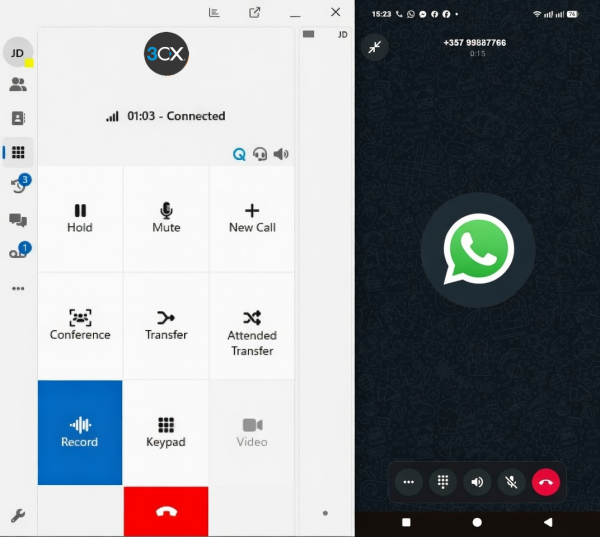
Since 3CX V20 Update 8, 3CX supports incoming (inbound) voice calls from WhatsApp, extending the previous WhatsApp integration that only supported text messaging (chat).

With this feature, your business WhatsApp number can be registered as a SIP Trunk in 3CX, so incoming voice calls through WhatsApp can be routed directly to:

  • An Extension (a staff member’s internal number)
  • A call Queue
  • An IVR / Digital Receptionist
  • An AI Agent

Important note: Currently this feature only supports inbound calls from WhatsApp to 3CX. Outbound calls from 3CX to WhatsApp are not yet supported.

Prerequisites #

Before you start, make sure you already have:

  1. An active (Live) WhatsApp Application on the Meta for Developers Portal, complete with messaging permission for the business number you want to enable.
  2. The Phone Number ID and User Access Token for that WhatsApp number.
    • If WhatsApp Messaging is already active in your 3CX, both of these values can be obtained directly from Admin Console → Voice & Chat → [Your WhatsApp Messaging Trunk].
    • If you’ve never enabled WhatsApp on 3CX before, first follow the Configuring WhatsApp guide to obtain the Phone Number ID and User Access Token.
  3. A third-party tool such as Postman, since enabling SIP isn’t currently available through Meta’s UI portal — it has to be done via a request to the Meta Graph API.

For multiple numbers: If you want to integrate more than one WhatsApp number, each number needs its own WhatsApp Application on Meta for Developers, and all of the steps in this guide must be repeated for each number.


Step 1 — Create a WhatsApp Application #

  • If WhatsApp Messaging is already configured in your 3CX, skip this step and get the Phone Number ID and User Access Token from: Admin Console → Voice & Chat → Your WhatsApp Messaging Trunk
  • If not, follow the WhatsApp Integration Guide to create the application and obtain both values.

Step 2 — Enable SIP on Your WhatsApp Number #

Send the following POST request to the Meta Graph API using curl or Postman.

curl -X POST "https://graph.facebook.com/v24.0/<PHONE_NUMBER_ID>/settings" 
-H "Authorization: Bearer <YOUR_ACCESS_TOKEN>" 
-H "Content-Type: application/json" 
-d '{
  "calling": {
    "status": "ENABLED",
    "callback_permission_status": "ENABLED",
    "call_icon_visibility": "DEFAULT",
    "srtp_key_exchange_protocol": "SDES",
    "sip": {
      "status": "ENABLED",
      "servers": [
        {
          "hostname": "<YOUR_3CX_FQDN>",
          "port": <YOUR_SIPS_PORT>
        }
      ]
    }
  }
}'

Replace the following with your own data:

PlaceholderDescription
<PHONE_NUMBER_ID>Phone Number ID from Step 1
<YOUR_ACCESS_TOKEN>User Access Token from Step 1
<YOUR_3CX_FQDN>Your 3CX PBX’s FQDN, e.g.: mypbx.3cx.com
<YOUR_SIPS_PORT>Usually 5061 if your PBX uses the default port

If the request succeeds, you’ll get this response:

{"success":true}

You can also import the curl command above directly into Postman via File → Import.

Step 3 — Verify the SIP Configuration #

Send the following GET request to confirm the SIP configuration is correct:

curl -X GET "https://graph.facebook.com/v17.0/<PHONE_NUMBER_ID>/settings?fields=calling&include_sip_credentials=true" 
-H "Authorization: Bearer <YOUR_ACCESS_TOKEN>"

Example response on success:

{
  "calling": {
    "status": "ENABLED",
    "call_icon_visibility": "DEFAULT",
    "callback_permission_status": "ENABLED",
    "srtp_key_exchange_protocol": "SDES",
    "sip": {
      "status": "ENABLED",
      "servers": [
        {
          "app_id": 112233445566778,
          "hostname": "pbx.3cx-example.com",
          "port": 5061,
          "sip_user_password": "aabbccddeeffgghhiijjkkllmmnnoopp"
        }
      ]
    }
  },
  "storage_configuration": {
    "status": "DEFAULT"
  }
}

Step 4 — Enable Call Settings in WhatsApp Business Manager #

  1. Open WhatsApp Business Manager.
  2. Click Phone Numbers, then select your WhatsApp number.
    • If Phone Numbers isn’t visible, click All tools first.
  3. Open the Call Settings tab, and make sure the following options are enabled:
    • ✅ Allow voice calls
    • ✅ Allow callbacks
    • ✅ Display call buttons

Step 5 — Create a SIP Trunk in 3CX #

  1. Download the WhatsApp template provided by 3CX.
  2. Go to 3CX Admin Console → Admin → Advanced → Templates → Provider Templates.
  3. Click Import Provider, select the template file you downloaded, then click Import.
  4. Fill in the following configuration:
    • Name — give your new WhatsApp SIP Trunk a name.
    • Default route — set the default destination for incoming WhatsApp calls (extension/queue/IVR/AI Agent).
    • Uncheck the Create an outbound rule option (since this feature is inbound-only).
    • Main Trunk Number — fill in your WhatsApp number.
    • Leave the other fields at their default values.
  5. Click Save.

Once saved, your 3CX system will be ready to receive incoming calls from that WhatsApp number and forward them to the destination you specified.

Alternative: Manually Creating a Generic SIP Trunk #

If you’d rather not use the template, you can manually create a Generic SIP Trunk with the following configuration:

SettingValue
Authentication TypeIP-based
Hostwa.meta.vc
PortAuto discovery
Transport ProtocolTLS
SRTP ModeEnforced
CodecsOPUS

Flow Summary #

Incoming WhatsApp Call
        │
        ▼
  WhatsApp SIP Trunk (3CX)
        │
        ▼
 Extension / Queue / IVR / AI Agent

Frequently Asked Questions (FAQ) #

Q: Can I make outbound calls to WhatsApp from 3CX?

A: Not yet. The current implementation only supports inbound calls from WhatsApp into 3CX.

Q: Can I enable SIP directly from the Meta dashboard?

A: Not yet. Enabling SIP can currently only be done via an API request (e.g. using Postman), not through Meta’s portal interface.

Q: What if I have more than one business WhatsApp number?

A: Each WhatsApp number needs its own separate WhatsApp Application on Meta for Developers, and the entire process (Steps 1–5) must be repeated for each number.

How Many Types of SIP Trunk Numbers or Services Are There?SIP Trunk Management: How to Connect a Local Provider Phone Number to 3CX
Table of Contents
  • Prerequisites
  • Step 1 — Create a WhatsApp Application
  • Step 2 — Enable SIP on Your WhatsApp Number
  • Step 3 — Verify the SIP Configuration
  • Step 4 — Enable Call Settings in WhatsApp Business Manager
  • Step 5 — Create a SIP Trunk in 3CX
    • Alternative: Manually Creating a Generic SIP Trunk
  • Flow Summary
  • Frequently Asked Questions (FAQ)

Share This Article :

  • Facebook
  • X
  • LinkedIn

Was it helpful ?

  • Happy
  • Normal
  • Sad
  • Cloud PBX
  • Products & Services
  • Devices
  • Case Studies
  • News
  • Video
  • Help Center
  • Contact
  • Partnership Program
  • About Us
  • Cloud PBX Enterprise
  • Cloud PBX Multi tenant
  • Cloud call center
  • Cloud PBX office
  • Click to Talk
  • Webrtc softphone
  • AI Agent & API Integration: 24/7 Automated Customer Service Solution
  • WhatsApp Business Calling API Integration with PBX
  • Integrasi CRM dengan 3CX
  • Help Center
  • Comply with PCI DSS & HIPAA Standards
  • Practical Ways to Improve Hotel Communication Efficiency
  • Agentic AI: A New Era for Smart Phone Systems
  • Cloud PBX Office for Business Communication
  • Understanding the Call Flow Designer Feature
  • Call Center Hospitality
  • WhatsApp Customer Service with 3CX
  • PBX Monitoring with Grafana and SQL Dashboard
  • Ribbon SBC for Microsoft Teams Direct Routing: SBC 1000 Appliance vs Cloud-Based SWe Lite
  • Sangoma SBC: A Secure Bridge from Telkom SIP Trunk to AI Voice Platforms
  • Privacy Policy

PT. Solusi Teknologi Unggul | My Republik Plaza Wing A Ground Level Zona 6, Green Office Park 6. BSD City Tangerang Banten 15345 Tel:+62-21-50111266

Copyright © 2026 PT. Solusi Teknologi Unggul 

Need help? Chat with us on WhatsApp
WhatsApp
Hello, welcome to Solusipbx.com, thank you for contacting us

To help us provide the right solution, please tell us your Name, Company
and your needs
Open Chat
Powered by Joinchat