


Digital Receptionist (IVR): How to Build a Professional Automated Phone Menu

Updated on September 30, 2026
2 min read
Ever called a company and been greeted by something like this?
“Hello, welcome. Press 1 for Sales, press 2 for Support, press 3 for Billing.”
That feature is called a Digital Receptionist, better known as IVR (Interactive Voice Response).
A Digital Receptionist (IVR) routes customers straight to the right department without needing an operator. The result? Faster, more professional service, and a more efficient team.
What Is a Digital Receptionist (IVR)? #
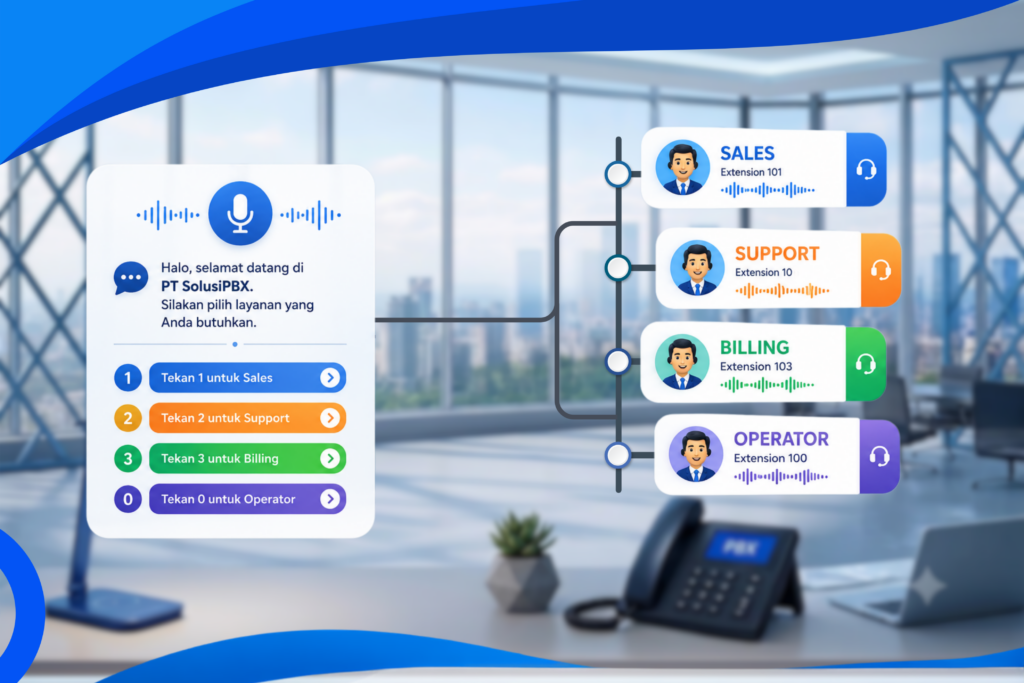
A Digital Receptionist (IVR) is a system that greets every incoming call with an automated voice. The customer then simply presses a number for what they need.
For example:
Welcome to PT ABC.
Press 1 for Sales.
Press 2 for Support.
Press 3 for Billing.
Press 0 to speak with an Operator.
This way, the call gets routed straight to the right team.
Why Do Companies Need an IVR? #
Using an IVR isn’t just about looking professional — it also makes your whole communication process much more organized.
Some of the benefits include:
- Customers get routed straight to the department they need.
- Saves your operator’s time.
- Creates a professional impression from the very first call.
- Can still handle calls even outside business hours.
Example IVR Menu Structure #
To make it easier to picture, here’s a menu structure many companies commonly use.
Hello, welcome to PT ABC.

Press 1 for Sales.
Press 2 for Support.
Press 3 for Billing.
Press 0 for Operator.
If your business is bigger, the menu can also have multiple levels.
For example:
Press 1 for Sales
   ├── Press 1 for Products
   └── Press 2 for Quotes

Press 2 for Support
   ├── Press 1 for Internet Issues
   └── Press 2 for Phone Issues
This lets customers select the specific service they need.
How to Set Up a Digital Receptionist (IVR) #
The setup process is actually quite simple.
1. Plan the Menu Flow #
First, think about who your customers usually want to reach.
For example:
- Sales
- Customer Support
- Finance
- Operator
The simpler the menu, the easier it is for customers to follow.
2. Record the Voice Greeting #
Record a clear, friendly greeting.
For example:
Hello, welcome to PT ABC. For Sales, press 1. For Support, press 2. For Billing, press 3. To speak with an operator, press 0.
Recording tips:
- Speak at a relaxed pace.
- Record in a room with minimal background noise.
- Avoid overly loud background music.
- Keep it short so customers don’t get bored.
3. Upload the Audio to the PBX System #
Once the recording is ready, upload the audio file to your phone system, such as 3CX or another IP PBX.
Then map each key press to the right destination.
For example:
| Key | Destination |
|---|---|
| 1 | Sales |
| 2 | Support |
| 3 | Billing |
| 0 | Operator |
4. Test It Out #
Before going live, make a few test calls.
Make sure:
- Every key works.
- The audio is clear.
- No destination is wrong.
- Customers actually reach the department they selected.
Supported Audio Format #
For the IVR audio to play back correctly, use the following audio format.
| Setting | Value |
|---|---|
| Format | WAV |
| Sample Rate | 8 kHz |
| Bit Depth | 16-bit |
| Channel | Mono |
This format is the standard on most PBX systems, since it delivers stable audio quality while keeping file size small.
If you record using a phone or audio editing software, make sure to export the final file in this format before uploading it.
Tips for a Pleasant-Sounding IVR #
Here are a few things worth keeping in mind.
- Use simple language.
- Stick to 4–5 menu options at most.
- Mention the most commonly needed option first.
- Add a pause after each option.
- Keep the volume level consistent.
- Avoid overly long sentences.
The shorter and clearer it is, the easier it is for customers to follow along.
Common Mistakes #
The following mistakes often leave customers confused.
- Too many menu options.
- Distorted or too-quiet recording.
- Wrong destination number.
- No option to speak with an operator.
- Audio in a format the system doesn’t support.
That’s why you should always test it before putting an IVR into active use.
Conclusion #
A Digital Receptionist (IVR) is a simple solution that can improve the customer experience whenever they call your company. With a clear menu, quality voice recording, and the right audio format — WAV, 8 kHz, 16-bit, Mono — customers can reach the department they need right away without a long wait.
The more organized your IVR flow, the more professional impression customers get every time they call.
Read more here: V20 Administration Manual Index