



How to Change Your AUX Status (Available, Away, DND) in 3CX

Updated on September 30, 2026
3 min read
Ever been in a meeting or deep in focused work while calls from coworkers keep coming in? As a result, those calls just get missed. So colleagues know what’s going on, 3CX provides the AUX (Auxiliary) feature.
So what is the AUX feature? #
The AUX (Auxiliary) feature is used to show whether an agent is on a call or not ready to take calls. With this feature, you can change your status to Available or Do Not Disturb (DND) depending on what you’re doing. So what types of AUX status are there?
Types of AUX Status in 3CX #
- Available
This status shows that you’re ready to take calls and chats. All communication comes through as usual.
- Away
Used when you’re away from your desk or can’t respond for a while. Calls can be forwarded according to whatever rules you’ve set up.
- Do Not Disturb (DND)
This status is a good fit for meetings or when you need full focus. By default, incoming calls are sent to voicemail or follow whatever forwarding rules have been configured.
- Customizing Status Names
Besides the default statuses, administrators can also rename them to better fit the company’s needs. For example, Do Not Disturb (DND) can be renamed to “Busy”, “In a Meeting”, or “Do Not Disturb”, making it easier for the whole team to understand.
How to Change Your AUX Status #
Through the 3CX Web Client or the Mobile App:
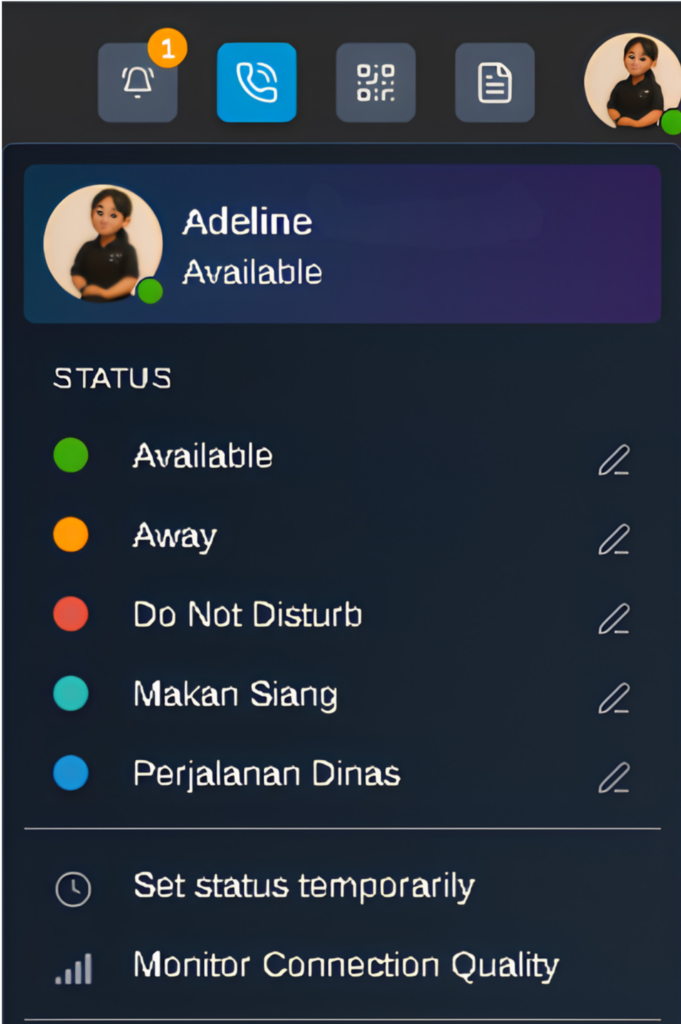
- Log in to your 3CX account.
- Click or tap the Status icon.
- Pick one of the statuses:
- Available
- Away
- Do Not Disturb (DND)
- Your status updates immediately and becomes visible to coworkers.
- You can also rename a status by clicking the pencil icon (✏️) next to the status name. For example, you could rename “Lunch” to “Break” or any other name that fits your needs.
Using the AUX Feature in the Workplace #
1. During a Meeting #
When joining an internal or client meeting, switch your status to Do Not Disturb (DND). That way, calls won’t disrupt the meeting and will be redirected to voicemail or another destination you’ve set up.
2. During a Break #
During lunch or a break, use the Away or Lunch status so coworkers know you’re not at your desk and calls can be redirected accordingly.
3. When You Start Working #
Once you’re back and ready to serve customers, switch your status to Available so all calls and chats come through as usual.
4. For Customer Service Teams #
A supervisor can monitor every agent’s status in real time. This means calls get distributed more evenly and customers don’t have to wait too long.
5. For Field Sales Teams #
Sales reps visiting customers can switch their status to Away or DND. Coworkers back at the office will know they’re out in the field without needing to call repeatedly.
6. When Working Hybrid or From Home #
Employees working from home can still update their status through the 3CX app on a laptop or smartphone, so the whole team knows whether they’re available or not.
Read more helpful articles on SolusiPBX News (Indonesian).