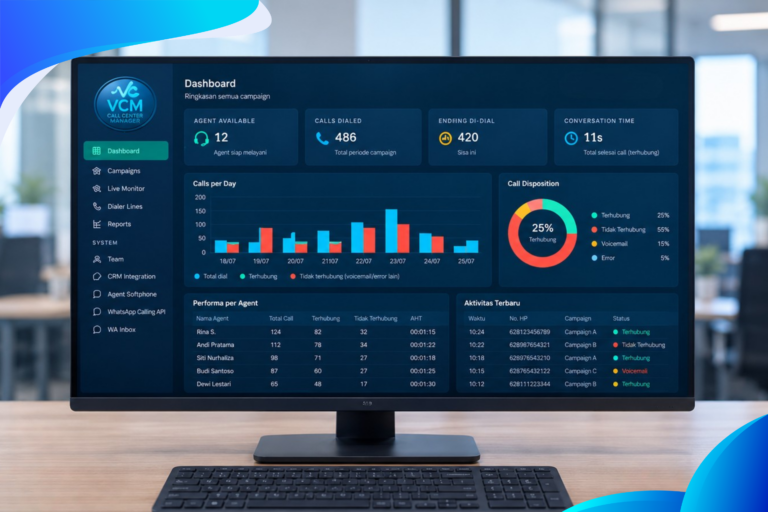





3CX Zoho Desk Integration is an application that can be used for free in the Zoho Desk marketplace to integrate with the IP-based phone system 3CX.
With this integration, users can connect and collaborate on one platform and can easily track answered and missed calls. Easy server-side configuration makes it convenient to integrate Zoho Desk with the 3CX IP PBX.
Benefits of the 3CX Zoho Desk Integration
Call Popup: The customer’s history is shown right away in Zoho Desk when a call comes in, making it easier for agents to identify the caller, take notes, or create a ticket.
Create a ticket for Answered and Missed Calls: Ticket creation can be automated when the customer and agent finish a conversation. This ticket automation makes it easier for agents to record things in the Zoho Desk system.
Call Journal: Records all answered and missed calls as call activities.
Install the Zoho Desk 3CX Extension
To install Zoho Desk on the 3CX IP PBX, you need the Zoho Desk Extension, which can be downloaded from the Zoho Marketplace in your Zoho Desk account.
Here are the steps in Zoho Desk:
- Log in to the Zoho Desk account with Administrator privileges
- Press the setup icon (Gear) on the top bar
- In the Marketplace, choose All
- Use the keyword “3CX” in the search box
- Select the 3CX extension and press install
- After clicking install, you will go to the 3CX Installation Page
- Choose which departments and profiles can access the extension in Zoho Desk
- Agree to the Terms of use and press install
- Press Authorize in the popup window to activate the extension
- Press Accept to allow Zoho Workflow to access data in the Zoho Desk account
Configuration on the 3CX server side
For 3CX to work as expected, there are 2 parts of the configuration to pay attention to
Part 1: Configure the extension in Zoho Desk
- Select the menu bar icon. Refresh the browser if you do not see it
- Click 3CX in the extensions drop down menu.
- Do the following:
- Enable Create new ticket for missed calls
- Choose from the drop down menu when a ticket is created for inbound, outbound, or all missed calls
- Map the extension numbers in 3CX to the agents in Zoho Desk
- Select the department, agent, and 3CX extension number
- Press the + icon and repeat this step for all agents you want to track in Zoho Desk
- Press save when done
- Press Download XML Template to save the 3CX server side configuration and store it on your computer
Part 2: Configure the extension in 3CX
- Log in to the 3CX management console
- Choose the menu settings > CRM Integration > Server side
- Press the Add button and upload the XML template you downloaded to your computer from Zoho Desk.
- On the configuration page, fill in the required details. For reference you can follow these instructions. Turn on Call Logging and Contact Creation. Fill in the Ticket Subject and New contact Name as you need, for example: Ticket subject (New 3CX Ticket) and New contact name [new 3CX Contact]
- Press ok.
Click to call from Zoho Desk.
When you use the 3CX web client, you will be prompted to install the 3CX Chrome extension. One benefit of using the 3CX Chrome extension is the click to call function to place calls directly from Zoho Desk.
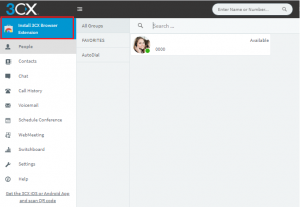
Click and go through the install process until the notification disappears